
Claude Cowork: How Anthropic's AI Desktop Agent Actually Works
Anthropic's Claude Cowork gives Claude direct access to your filesystem — organizing files, batch converting documents, and browsing the web on your behalf. Hands-on breakdown with 3 real examples and an honest look at its limits.
Claude Cowork: How Anthropic’s AI Desktop Agent Actually Works
For years, AI assistants told you what to do. Claude Cowork does it for you.
Announced in January 2026, Claude Cowork is Anthropic’s research preview that turns Claude from a conversational assistant into a desktop agent. You point it at a folder, describe what you need, and it plans and executes the work — reading files, renaming them, converting formats, deleting duplicates — without you managing each step.
This post covers what Cowork is, how it compares to regular Claude and Claude Code, three hands-on use cases, and where it currently falls short.
What Is Claude Cowork?
Claude Cowork is a mode inside the Claude Desktop App that gives Claude direct access to folders you choose to grant it. Unlike standard Claude chat — where Claude can only see files you upload manually, capped at around 30MB each — Cowork can read, write, rename, move, and delete files in any permitted folder.
Quick comparison:
| Claude Chat | Claude Cowork | Claude Code | |
|---|---|---|---|
| What it does | Conversational — suggests and drafts | Operational — executes file tasks | Technical — builds and codes |
| Filesystem access | Upload only (~30MB per file) | Full read/write in permitted folders | Deep access + terminal command execution |
| Interface | Browser / app chat | Claude Desktop App | Terminal |
| Target user | Anyone | General users, non-coders | Developers |
| The one-liner | “Shows you how” | “Gets it done” | “Builds it” |
Cowork was built on the same underlying agent architecture as Claude Code. In fact, Anthropic used Claude Code to build Cowork in roughly two weeks — then wrapped it in the familiar chat interface so no terminal experience is required.
How to Access Claude Cowork
Cowork requires a Claude Max subscription, priced at $100–$200/month. It’s macOS only for now, with Windows support in development.
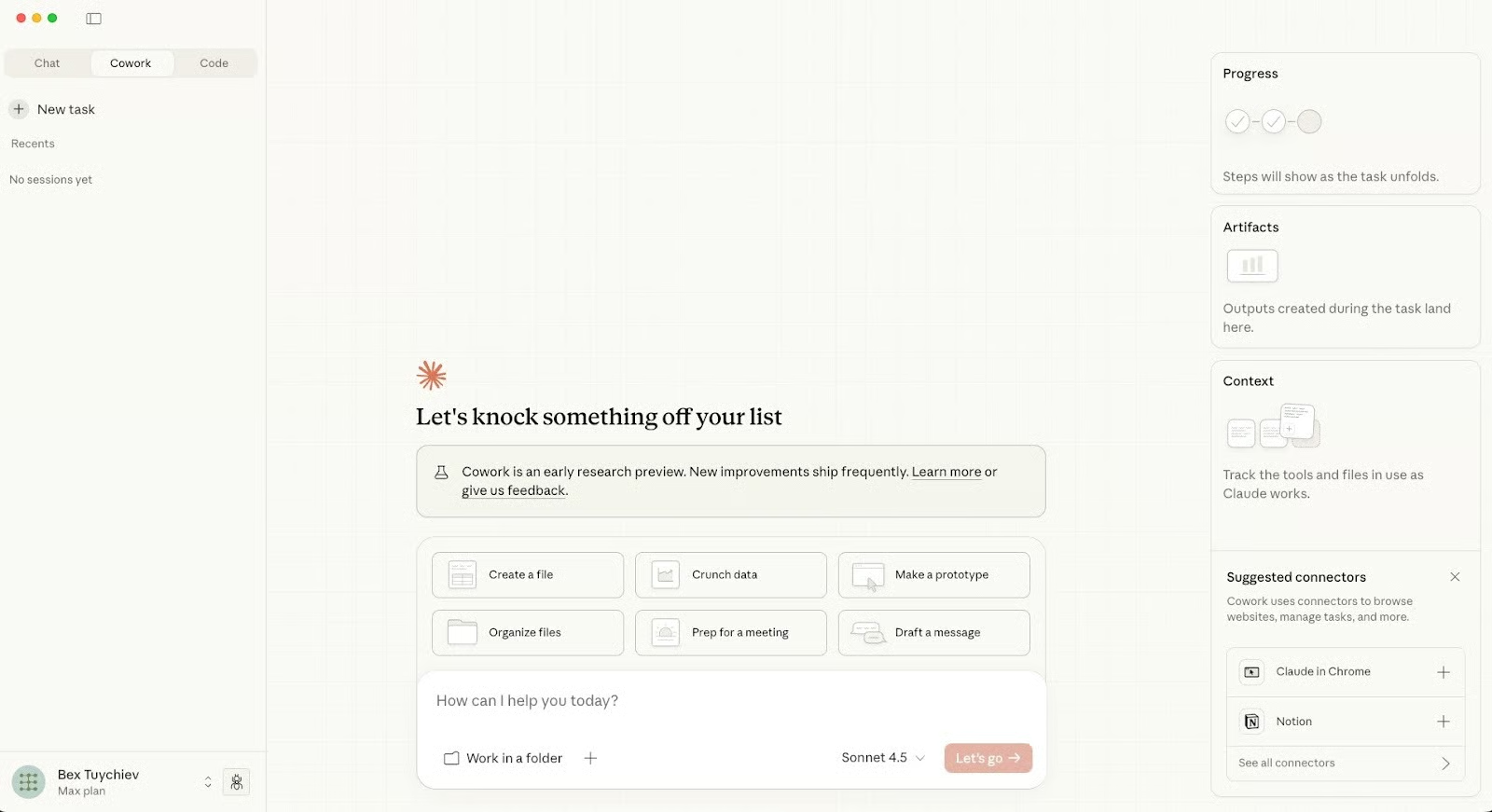
Open the Claude Desktop App. At the top of the window, you’ll see three tabs: Chat, Cowork, and Code. Click Cowork to switch modes.
If you’re on a lower subscription tier, there’s a waitlist you can join.
3 Practical Use Cases
1. Organizing a Messy Downloads Folder
The obvious first test. Most Downloads folders are graveyards of accumulated files — PDFs, screenshots, stray installers, randomly named images.
The Cowork interface opens with suggested tasks like “Organize files” and “Crunch data.” At the bottom of the input field is a “Work in a Folder” checkbox. Check it, select your folder, and grant permissions. You can give one-time access or choose “Always Allow” for folders you use repeatedly.
A simple prompt like this is enough:
Organize this downloads folder. Sort files into subfolders by type.
Rename files with generic names like "IMG_" or "download" to something
descriptive based on their content. Delete duplicates. Summary when done.
Cowork runs terminal commands in a sandboxed environment, lists all files, builds a visible plan in the right sidebar, and starts working. Critically: before deleting anything, it stops and asks for your confirmation.
Duplicate detection happens via file hashes, not filenames — meaning it catches duplicates even when the names are completely different.
Results from one real test: 186 files → 11 organized subfolders, 27 duplicates removed, generic filenames like 1.jpg renamed to descriptive names based on the file’s actual content.
2. Batch File Conversion and Compression
A more demanding task: convert all .docx files to PDF, compress all existing PDFs, convert all images to PNG, and return size stats before and after.
Cowork first checks what tools are already installed (LibreOffice, Ghostscript, etc.). If they’re missing, it asks permission to install them. These are the same open-source tools behind most online file conversion sites — running locally, with no file size limits and no per-batch fees.
In this folder:
1. Convert all .docx files to PDF, then move originals to a "docx-archive" folder
2. Compress all PDF files to reduce their size
3. Convert all images to PNG format and compress them

Give me a before/after size summary when done.
Results from one test: 21 Word docs converted to PDF, 40 PDFs compressed (25.5% size reduction, 63.7 MB saved), 35 images converted to PNG. All from a single prompt.
3. Generating a Report From Raw App Data
The most impressive test: a backup file from a personal finance app (.mmbackup format).
Cowork identified it as a renamed ZIP archive, extracted it, ran queries against the SQLite database inside, and produced a 10-page PDF report — 14 months of transaction history, monthly breakdowns, category spending, top merchants, and trend charts over time.
It wrote custom Python scripts for chart generation and used its built-in PDF skill for document layout formatting. No financial data uploaded anywhere. Everything ran locally on the machine.
Advanced Features
Cowork Skills
Skills give Cowork native handling for specific file formats: xlsx, pptx, docx, and pdf. The PDF skill supports merging, splitting, and form-filling. A skill creator exists for building custom skills.
One limitation worth knowing upfront: the xlsx skill struggles with presentation-style spreadsheets. If your Excel file has section headers in rows, merged cells, or multiple data regions on the same sheet (formatted for human reading, not programmatic parsing), expect parsing failures. Clean columnar data works fine.
The docx skill is more reliable — Word documents are XML under the hood, and LLMs handle XML well.
Browser Automation With Claude in Chrome
Cowork integrates with a Chrome extension that lets Claude see and interact with web pages — clicking buttons, filling forms, navigating between tabs. Enable it via Settings → Chrome connector.
In testing: Claude opened Gmail, searched for emails from a specific sender using Gmail’s from: syntax, found the unsubscribe link, completed the unsubscribe flow on the third-party page, confirmed success, returned to Gmail, and deleted all emails from that sender. No manual intervention at any step.
The unavoidable downside: it’s slow. Every action requires a screenshot sent back to Cowork for the next decision — mouse click, page load, new screenshot, next step. Three newsletter unsubscribes took over 30 minutes. Good for one-time cleanup tasks. Not suitable for anything time-sensitive.
Connectors
Connectors link Cowork to external services — AWS Marketplace, n8n, Fellow.ai, Honeycomb, and hundreds of other options in the Anthropic-reviewed catalog. You can also add custom connectors for tools not on the list.
The key difference from regular Claude chat: in Cowork, connectors gain filesystem access. A connector pulling data from your CRM can now cross-reference it against local spreadsheets. Meeting notes from Fellow.ai can feed directly into local project folders on your machine.
Note: Gmail, Google Calendar, and Google Drive connectors are still in development and not yet available.
Current Limitations
- macOS only — Windows support not yet available
- $100–$200/month — not a casual-use tool
- xlsx parsing breaks on complex spreadsheet layouts — only reliable with clean tabular data
- Chrome automation is slow — every action requires a screenshot feedback loop
- Google connectors not yet shipped — Calendar and Drive still in development
Is It Worth It?
The “research preview” label is honest. There are real rough edges. But the underlying direction is clear: Anthropic is building agents as Claude’s next phase, and Cowork is the non-developer entry point — no terminal, no code, just a folder and a prompt.
If you regularly lose hours to file organization, format conversions, or repetitive browser tasks, the math changes fast. Start with one folder and the simplest task you can think of. If Cowork handles it cleanly, expand from there.
The era of AI that just advises is ending. Cowork is what comes next.